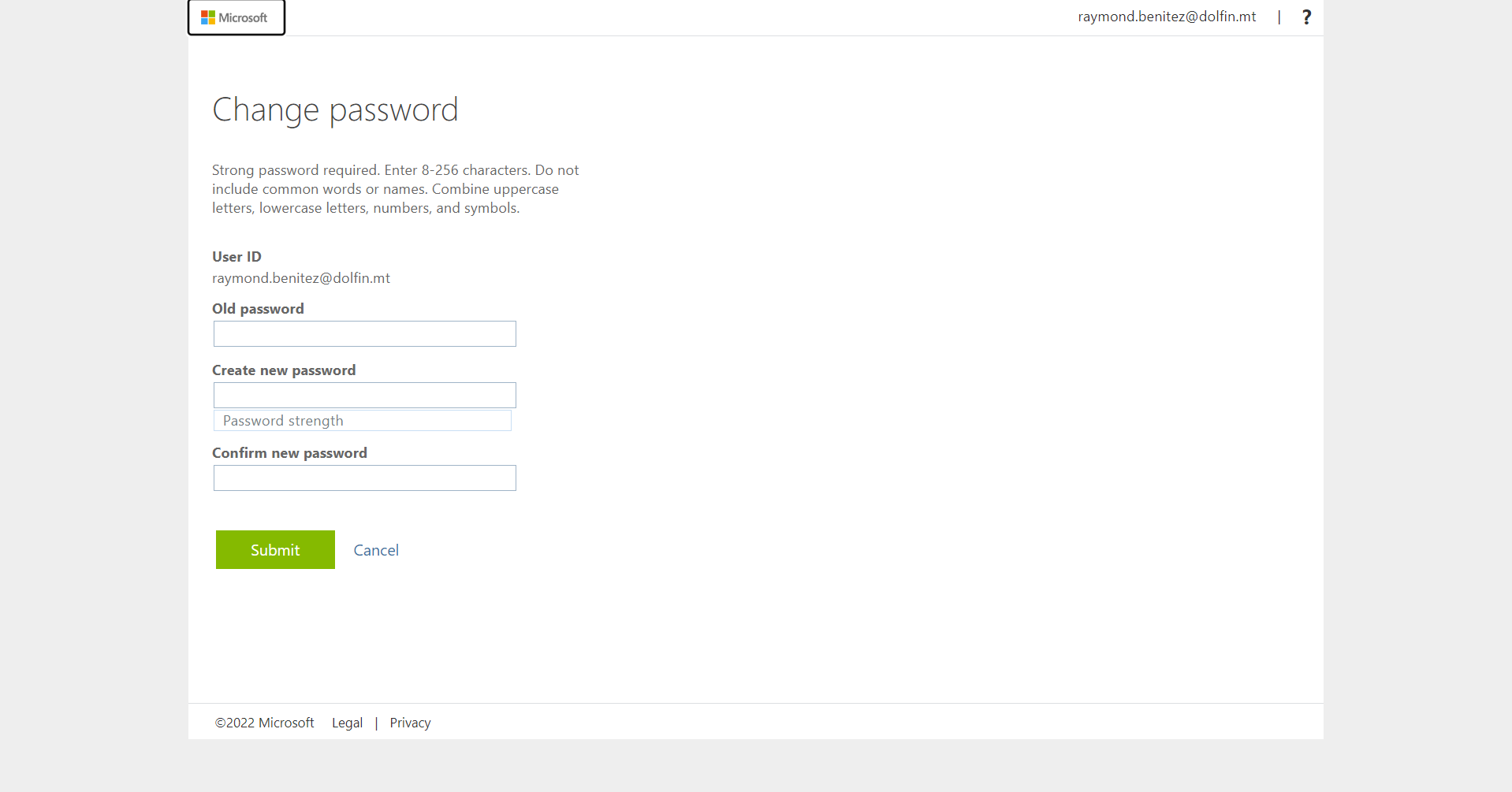
Reset password for Office 365

May 14, 2025
 136
136
- Go to office.com and Sign in
- Press on your Initials on the top right-hand corner
- Press view my account
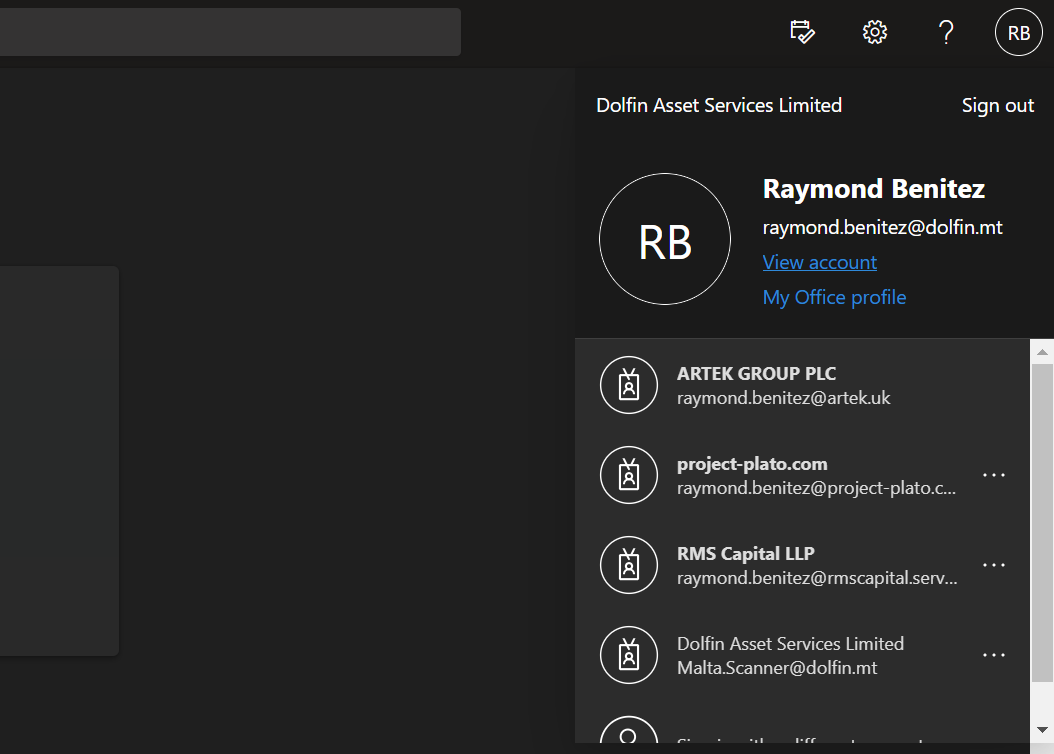
- A new page will open, Scroll down and you’ll see change my password

- Once you click change my password it will take you to a new page
- Put in your old password and new password.