Skip to content
You are using an unsupported browser. Please update your browser to the latest version on or before July 31, 2020.
You are viewing the article in preview mode. It is not live at the moment.

How to add Gmail to Outlook

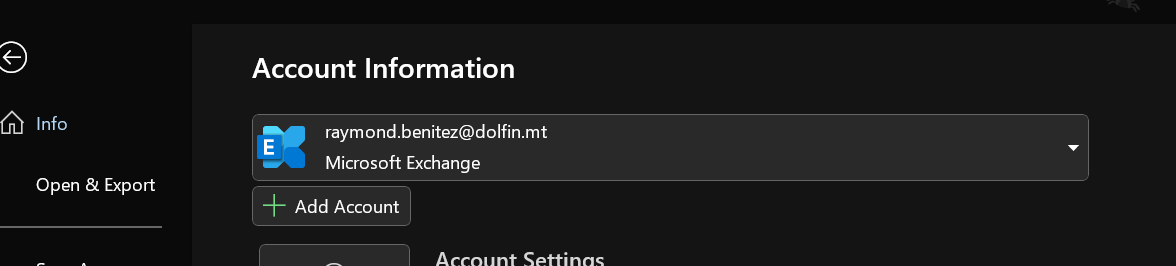
  1. Open Outlook, go to File
  2. Press Add account
                                             
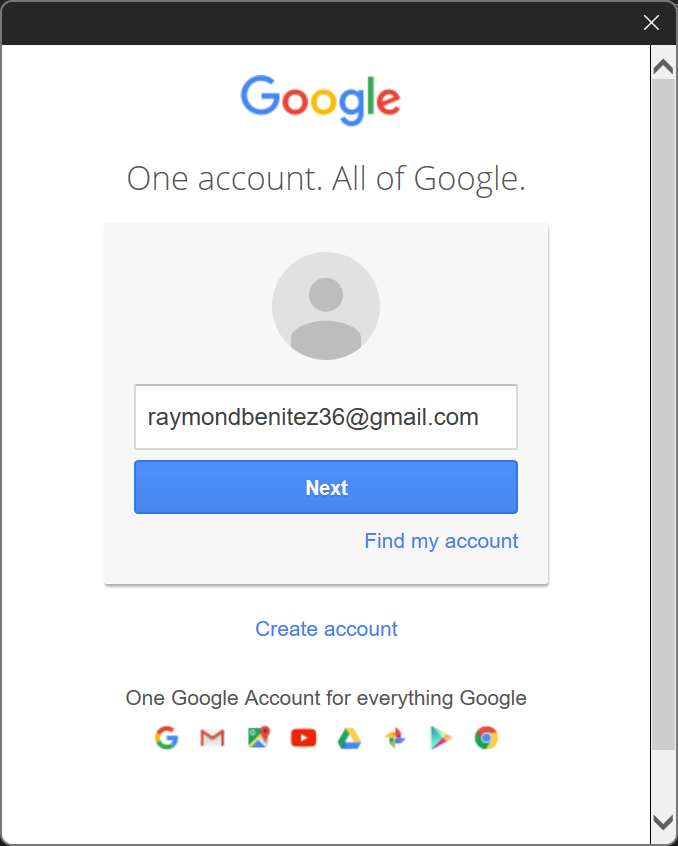
  3. Type in your Gmail account
                                                                  
  4. Press Next
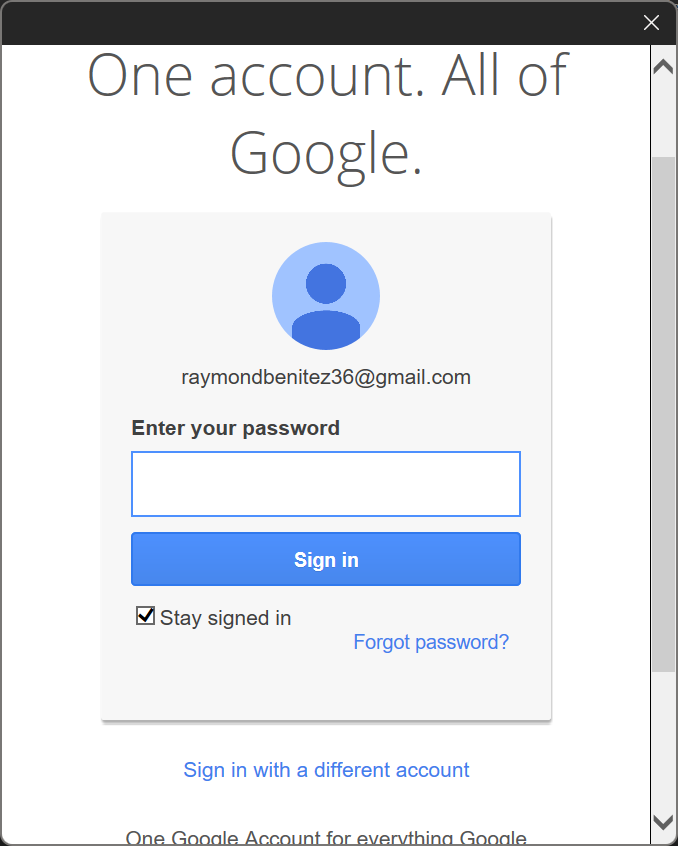
  5. Type in your password
                                                                            
  6. If you have 2-factor authentication on. It will ask you to verify.


    Some accounts can require entering settings manually; please contact the IT department for help. 

Feedback

0 out of 0 found this helpful